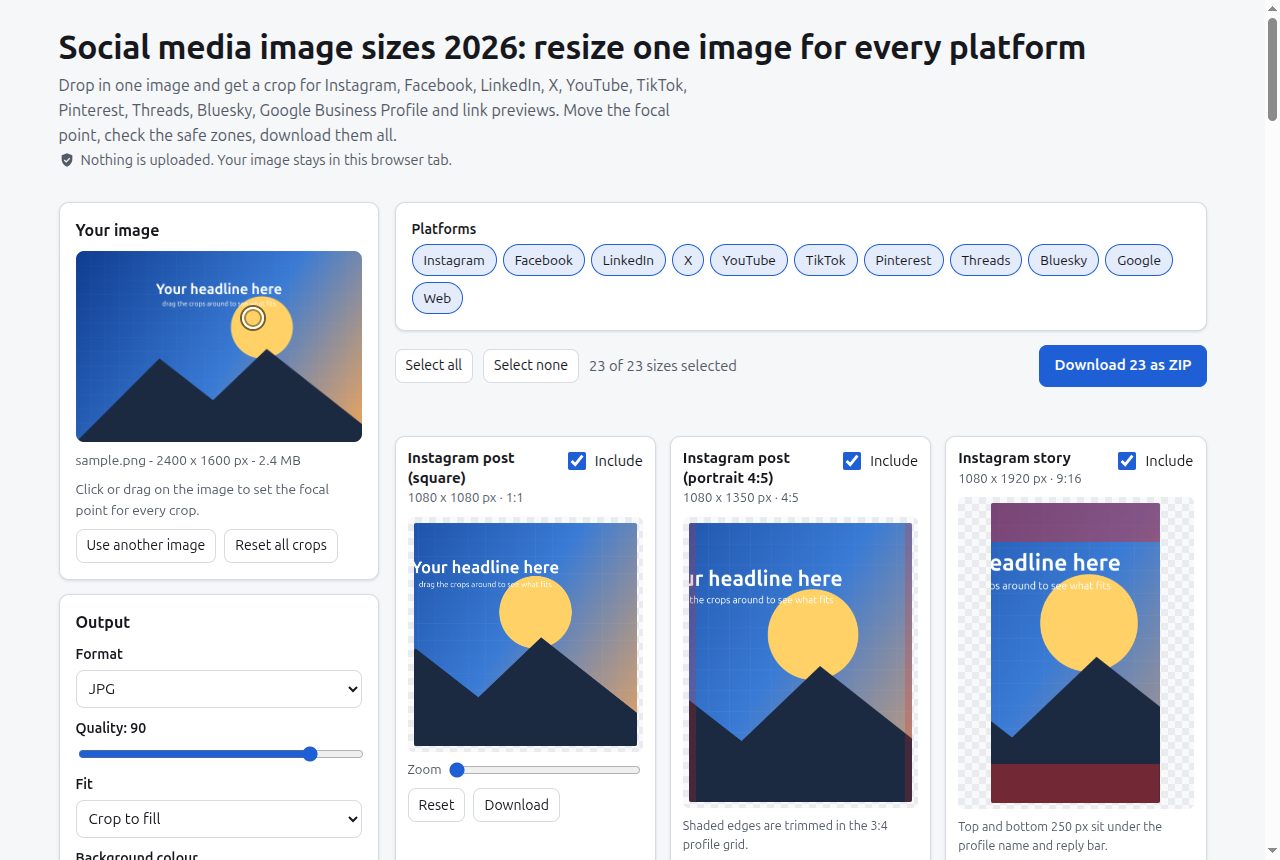
Getting the pixel size right is the easy part of resizing an image for social media. The hard part is what happens after you post: a LinkedIn profile photo lands on the headline in your banner, an Instagram story’s reply bar sits over your call to action, or a YouTube banner that looked fine on desktop shows only a thin strip on a phone. Most resizers hand you a correctly sized file and stop there.
I built this because every event I promote needs the same photo cropped eight or more times, and I kept finding the overlap problems only after publishing. You drop in one image, set the point that matters (a face, a product, a logo), and get 23 crops at once across Instagram, Facebook, LinkedIn, X, YouTube, TikTok, Pinterest, Threads, Bluesky, Google Business Profile and Open Graph link previews. Each crop shows red shading where that platform puts its own interface over your picture or trims it on some screens. Then you download one, or tick the ones you want and take a zip.
How it works
Each preset is three things: an output width, an output height, and a list of overlay rectangles in output pixels. Overlays come in two strengths. Dark red means the app draws over that area: names, reply bars, like/share rails, profile photos. Light red means the area is cut off on some screens or layouts.
The crop maths
The default is “cover” scaling, the same rule CSS uses for object-fit: cover. For a source of iw × ih and a target of w × h:
s  = max(w / iw, h / ih) × zoom      // scale so the target is fully covered
cw = w / s,  ch = h / s              // crop window size in source pixels
cx = clamp(fx × iw, cw/2, iw − cw/2) // focal point, kept inside the image
cy = clamp(fy × ih, ch/2, ih − ch/2)
The focal point (fx, fy) is stored as a fraction of the image (0 to 1), so one click sets it for every preset regardless of aspect ratio. The clamp stops a crop from sliding off the edge: put the focal point on a face near the left side and the crop moves as far left as it can, then stops, rather than padding with empty space.
A worked example: a 4000 × 3000 photo going to an Instagram story at 1080 × 1920.
s = max(1080/4000, 1920/3000) = max(0.27, 0.64) = 0.64- The crop window is
1080/0.64 × 1920/0.64 = 1687.5 × 3000source pixels, a full-height vertical strip. - With the focal point centred,
cx = 2000. Click near the left edge atfx = 0.1andcxwould be 400, but it clamps to 843.75 so the strip stays inside the photo.
Zoom runs from 1× to 4× and only ever tightens the window, so you can’t zoom out past the edges. Any single crop can be dragged or zoomed on its own; it then gets a “custom crop” badge and stops following the global focal point. A drag starts from the clamped centre, not the raw focal point, so pushing past an edge doesn’t build up dead travel you have to undo before the crop moves back.
There is also a “fit” mode that does the opposite (min instead of max), shrinking the whole image inside the frame and padding with a colour you choose. That’s for logos and graphics that must not lose an edge.
Where the overlay numbers come from
Several overlays are derived from published display sizes rather than guessed:
| Preset | Output | How the zone is derived |
|---|---|---|
| Instagram portrait | 1080 × 1350 | The profile grid shows 3:4 tiles. 1350 × 3/4 = 1012.5 px wide, so about 34 px is trimmed from each side in the grid. |
| Facebook cover | 1640 × 624 | Desktop shows 820 × 312 (the same 2.63:1 ratio). Phones show 640 × 360, which is 16:9: 624 × 16/9 ≈ 1109 px wide, so about 265 px goes from each side. |
| YouTube banner | 2560 × 1440 | YouTube’s 1235 × 338 safe area at the 2048 × 1152 minimum scales to about 1546 × 423 at full size, centred: 507 px in from each side, 508 px down. |
| Instagram story | 1080 × 1920 | Meta’s guidance of roughly 250 px (about 14%) clear at top and bottom. |
| TikTok cover | 1080 × 1920 | The commonly recommended 880 × 1220 safe area, 60 px from the left and 220 px down, with the right-hand button rail and bottom caption area shaded. |
The profile-photo overlaps on the LinkedIn, X and Bluesky banners and the LinkedIn company logo are my own approximations from the current layouts, and the tool labels them “approximate”. Every size’s source is listed in the repo README with the date it was last checked.
Keeping it fast
Twenty-three canvases redrawing on every pointer move would stutter on a large photo. Two things keep it smooth. When an image loads, the tool makes a preview copy capped at 1600 px on the long side, and each preview card is capped at 520 px. Redraws are batched: a drag marks cards as dirty and they repaint once per animation frame. Export ignores all of that and redraws from the full original at the exact output size, with high-quality smoothing.
Design decisions
Nothing leaves the browser. It’s plain canvas: no server, no analytics, no cookies. The only outside file is JSZip from cdnjs, pinned with a subresource integrity hash, and the per-size download buttons still work if it fails to load. Event photos often include people who never agreed to be on someone else’s server.
Honest about upscaling. If your image is smaller than a preset in both dimensions, the tool tells you how many sizes will be upscaled and may look soft, rather than enlarging silently.
Honest about formats. Older Safari quietly returns a PNG when asked for WebP. The exporter checks what the browser actually produced, names the file with the real extension and says so.
Shareable setups. Format, quality, fit mode and selected sizes live in the URL hash and in local storage, so a team can share one link that produces the same set of files. The image itself is never in the link.
Keyboard and screen reader support. Arrow keys move a crop (Shift for bigger steps), plus and minus zoom, and the focal point announces its position as a percentage across and down.
Limits
- Platforms change layouts without notice. Sizes were checked against help pages in October 2026, and some (TikTok, Pinterest, Threads, Bluesky, X) have no single official page with pixel numbers, so those are common recommendations and marked “recommended” on the page.
- The profile-photo and logo overlap zones are approximations, not official figures.
- Overlays are fixed rectangles and ellipses. Real apps vary by device, font size and app version.
- iPhone HEIC files may not open in every browser and need converting to JPG first.
- The crop is purely geometric. There’s no face or subject detection; the focal point is wherever you click.
Try it with the built-in sample image, or read the source: one JavaScript file, no build step.