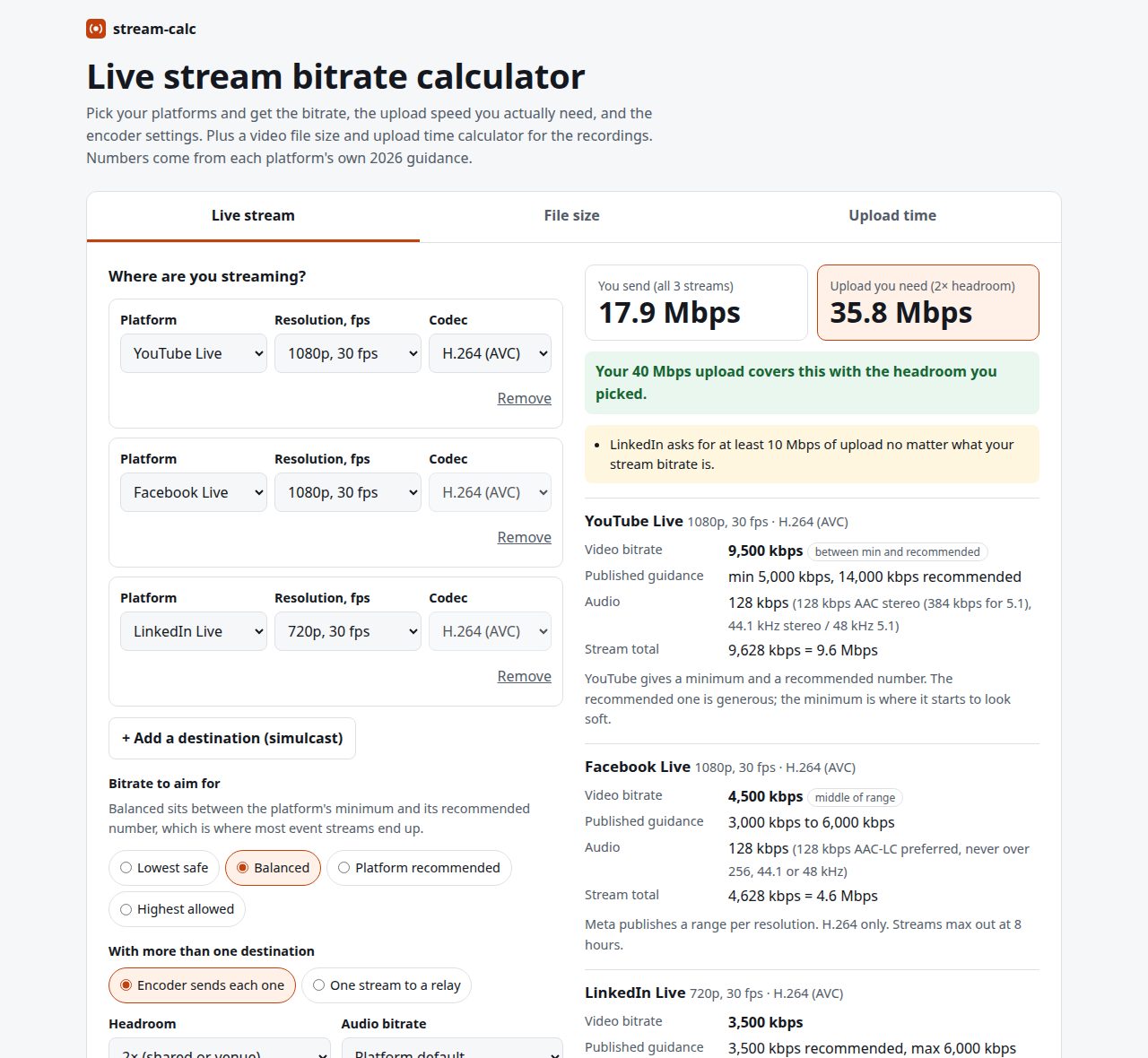
“How much internet do we need?” is the first question at every live event, and the honest answer takes five browser tabs: YouTube’s encoder page, Meta’s video requirements, LinkedIn’s help article, a speed test, and a notes app to add it all up. Then someone asks how many drives the camera recordings will fill. Stream Calculator puts all of that on one page.
The useful insight is that the platforms don’t publish the same kind of number. YouTube gives a minimum and a recommendation. Meta gives a range. Microsoft gives Teams only a ceiling. LinkedIn gives a recommendation and a cap. A calculator that treats these as the same thing gives you a confident wrong answer, so this one keeps each platform’s wording and tells you which kind of number you are looking at.
It is built for the person setting up the encoder at a venue: event producers, AV techs, comms teams running a town hall.
How it works
Platform tables
All platform data lives in one object at the top of app.js, in kbps, keyed by resolution and codec, with min, rec and max fields filled only where the platform publishes them. A few rows for 1080p30:
| Platform | Published guidance (H.264, 1080p30) | Audio default |
|---|---|---|
| YouTube Live | min 5,000, recommended 14,000 | 128 kbps |
| Facebook Live | 3,000 to 6,000 | 128 kbps (max 256) |
| Twitch | recommended 4,500, max 6,000 | 160 kbps |
| LinkedIn Live | max 6,000 (720p30 at 3,500 recommended) | 128 kbps |
| Vimeo | 4,000 to 5,000, 5,000 recommended | 128 kbps |
| Teams town hall (RTMP-In) | max 10,000 | 192 kbps |
| Zoom to RTMP | 3,800 upload, audio included | n/a |
Codecs only appear where the platform accepts them: YouTube offers HEVC and AV1 with lower numbers (1080p30 at 4,000 min, 10,000 recommended), Twitch offers HEVC only at 1440p, and Facebook is H.264 only. The Custom RTMP/SRT row is my own working defaults, labelled as such, with HEVC and AV1 set to 70% of the H.264 figure rounded to the nearest 250 kbps (1080p60: 8,000 becomes 5,500).
Picking one number
You choose a target: Lowest safe, Balanced, Platform recommended or Highest allowed. Each falls back to the nearest published field when one is missing. Balanced is the interesting one:
- If the platform gives a minimum and a recommendation, Balanced is their midpoint, rounded to 250 kbps.
- If it gives only a range, Balanced is the middle of the range.
- If it gives only a ceiling, you get the ceiling, tagged “platform max”.
So YouTube 1080p30 H.264 on Balanced is (5,000 + 14,000) ÷ 2 = 9,500 kbps, Facebook is (3,000 + 6,000) ÷ 2 = 4,500 kbps, and LinkedIn at 1080p30 falls to its 6,000 kbps cap.
Headroom
upload needed = (video + audio) × headroom
Headroom options are 1.25× (bare minimum), 1.5× (wired, dedicated), 2× (shared or venue, the default) and 3× (cellular, bonded). The reason is that a live encoder has to push its bitrate every second, not on average. A speed test reports a burst; a venue network is shared with hundreds of phones. Microsoft’s own Teams encoder guidance says to double the bitrate when sizing bandwidth, which is where the 2× default comes from.
The default plan, YouTube 1080p30 at 9,500 + 128 kbps, sends 9.6 Mbps and needs 19.3 Mbps of upload at 2×. Type in a measured upload and it gives one of three verdicts: covered, tight (enough for the stream but under your chosen headroom, with the actual ratio shown), or not enough.
Multistreaming
Add up to eight destinations and pick how they’re sent:
- Encoder sends each one: upload is the sum. YouTube (9,628) + Facebook (4,628) + LinkedIn 1080p30 (6,128) is 20,384 kbps, or 40.8 Mbps at 2× headroom.
- One stream to a relay: upload is only the heaviest stream, 9.6 Mbps here.
Relay mode checks what happens downstream. The relay receives your one feed, so if it carries 9,500 kbps of video and LinkedIn caps at 6,000, it warns you that the relay must re-encode for that destination. It also flags destinations set to a different resolution or codec than the feed, since most relays pass through as is unless you pay for transcoding. Platform-specific warnings cover LinkedIn’s request for at least 10 Mbps upload regardless of bitrate, Twitch HEVC needing Enhanced Broadcasting and Partner or Affiliate status, and Vimeo 60 fps being Enterprise only.
Encoder settings
For the heaviest stream it writes out matching OBS and vMix settings: resolution, CBR, the bitrate, a 2-second keyframe interval and the GOP in frames (fps × 2, so 60 at 30 fps), profile and B-frames from the platform entry (LinkedIn gets Baseline with no B-frames), audio bitrate and 48 kHz.
File size
bytes = (video kbps + audio kbps) × 1,000 ÷ 8 × seconds
Decimal units throughout (1 GB = 1,000,000,000 bytes), with binary GiB shown alongside because that’s what Windows reports. Worked through with the default H.264 1080p30 delivery preset, 8 Mbps video plus 384 kbps audio:
8,384 kbps × 1,000 ÷ 8 × 3,600 s = 3,772,800,000 bytes, so one hour is 3.77 GB (3.51 GiB), about 62.9 MB a minute.
Presets include H.264 delivery rates, ProRes 422 HQ, 422, LT and Proxy from Apple’s white paper (422 HQ 1080p30 is 220 Mbps), approximate phone 4K HEVC rates, or “same as my live stream”.
The reverse also works: give it a target file size and it returns the video bitrate that fits, after a margin for container overhead and encoder overshoot (5% by default). A 2 GB, one-hour file allows 2 × 10⁹ × 0.95 × 8 ÷ 3,600 ÷ 1,000 − 384 = 3,838 kbps of video.
Event-day storage and upload time
Storage is per-hour size × sources × hours per day × days × copies, and drive count assumes you only fill drives to 90%. Four ProRes 422 HQ 1080p30 cameras for an 8-hour day come to 100 GB per hour each, 3.2 TB per copy, which is two 2 TB drives per copy.
Upload time is bytes × 8 ÷ (Mbps × 10⁶ × efficiency), with efficiency defaulting to 85% because nobody gets their full line rate. A 20 GB file on a 50 Mbps line takes about 1 h 2 min, and a table shows the same file at 10, 25, 50, 100, 300 and 1,000 Mbps.
Design decisions
- Platform numbers, not mine. Every figure comes from the platform’s own documentation, linked in the README with a last-checked date. Where I’ve had to fill a gap (Custom RTMP, phone recording rates) the tool says so.
- Show the range, then the pick. Each destination card shows the published guidance next to the chosen bitrate, so you can see how it got there.
- No server. It’s plain HTML, CSS and JavaScript with no build step and no dependencies. Nothing is sent anywhere; your last settings stay in localStorage, and the whole state is encoded in the URL hash so a plan can be shared as a link. A copy button produces a plain-text summary for the run sheet.
Limits
- Platform numbers change. The tables are a snapshot, and the Zoom 720p default output comes from a help page I couldn’t load directly when I last checked.
- Phone recording rates are rough averages, not a spec.
- Headroom is a rule of thumb. It can’t know your network’s jitter or what else is on it; only a speed test at the venue, from the encoder machine, at go-live time, can.
- File size assumes constant bitrate. Variable-bitrate recordings will land above or below the estimate.
- Relay mode assumes the relay passes your feed through untouched.
Open it before your next site visit, or read the source to check a number against the platform.